ArcGIS installation instructions are on the Library’s Access to ArcGIS online and ArcPro page and shortened below.
Basic Instructions
- Check ESRI’s Software requirements page.
- Download from the Rutgers Software Portal or by using the instructions below (from the RU Library’s Access to ArcGIS online and ArcPro page):
- Download ArcGIS Pro
- Go to: https://rutgers.maps.arcgis.com
- Sign into ArcGIS Online
- Click on your username
- Click ‘My Settings’
- From the list of assigned licenses, next to ArcGIS Pro, click ‘Download’
- Complete the installation as directed.
- Download ArcGIS Pro
- Install the required Microsoft .NET Desktop Runtime. See note below about installer download.
- Install the ArcGIS Pro the file you downloaded earlier.
- Start ArcGIS Pro sigining in using instructions below (from the RU Library’s Access to ArcGIS online and ArcPro page):
- At the ArcGIS Sign In screen, click on the Your ArcGIS organization’s URL button
- At the next screen, enter rutgers in the box
- Check the Remember this URL box and click Continue
- Click the Rutgers University NetID Login button
- Enter your NetID and NetID password and click the Log In button
Microsoft .NET Desktop Runtime
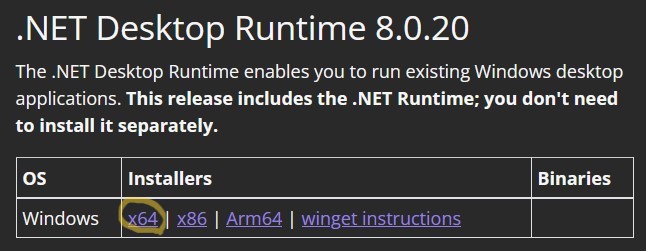
- To find the download, use the link on ESRI’s ArcGIS Pro 3.5 system requirements page under Software requirements or click image below for version 8.0.20.
- If you get to a page with many similar versions, as in the image below, choose the one that says “Microsoft .NET Desktop Runtime.”
- Choose the version that matches your computer’s processor. For most, this will be x64 or Arm64.