Printing from LA Computers
This is basic information about LA printers and some printing tips. For printer problems or for help printing, contact LA IT support at landarch-help@sebs.rutgers.edu.
General Tips
- Setting up your document the size it will be printed will simplify printing. Trying to enlarge to a specific size during printing often leads to mistakes and a lot of wasted time and supplies.
- If printing a PDF, opening the file in Acrobat (right click then Open with… Acrobat) will give a better print menu and more control over paper sizes and other printing preferences than just letting it open in a browser.
- Don’t forget to select the printer before adjusting settings. See “About LA Lab Printers” below for printer names and descriptions.
- See Troubleshooting below for common issues and some tips.
-
Landscape Architecture lab computers connect to four printers:
- “Student Copier”, “Student Ricoh” A multi-function color laser printer/scanner
- Blake 132: “sebs-la-faculty-copier_q” (Ricoh IM C4510)
- Standard Paper
- letter (8.5×11″)
- tabloid (11×17″)
- Standard Paper
- Blake 132: “sebs-la-faculty-copier_q” (Ricoh IM C4510)
- “Plotters”, “Large Format Printers”
- Blake 129: “sebs-la-plotter-2025-ps_q” (HP DesignJet Z6dr 44″)
- Standard paper (2 rolls)
- 36″ (roll 1)
- 24″ (roll 2)
- Standard paper (2 rolls)
- Blake 132: “sebs-la-plotter-132-ps_q” (HP DesignJet Z6dr 44″)
- Standard paper (2 rolls)
- 36″ (roll 1)
- 24″ (roll 2)
- Standard paper (2 rolls)
- Blake 129: “sebs-la-plotter-2025-ps_q” (HP DesignJet Z6dr 44″)
-
- Blake 129: “sebs-la-plotter-129_q” (HP DesignJet T790)
- Standard Paper (1 roll)
- 36″ (roll 1)
- Standard Paper (1 roll)
- Blake 129: “sebs-la-plotter-129_q” (HP DesignJet T790)
- “Student Copier”, “Student Ricoh” A multi-function color laser printer/scanner
-
Arch A 9″ x 12″
Arch B 12″ x 18″
Arch C 18″ x 24″ *
Arch D 24″ x 36″ *
Arch E 36″ x 48″ ** Sizes marked with an asterisk * will not require cutting.
-
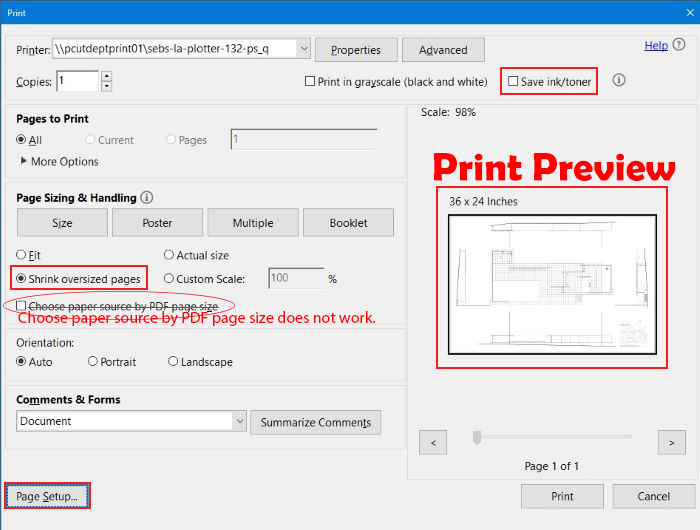
These instructions and screen shots show Adobe Acrobat’s print menu and apply to both of LA’s HP DesignJet large format printers (a.k.a. “plotters”).
- For standard Arch page sizes (Arch A, B, C, D, E), use the Page Setup button in the lower left side of the initial print settings screen.
- For standard sizes, it is not usually necessary to change the orientation as long as “Auto” is selected for “Orientation”.
- “Shrink oversized pages” will reduce the design enough so that none of it is cut off.
- Check the preview window. It shows how the design will fit on the chosen paper size with the active settings. If it doesn’t look right, adjust settings.
- Save ink/tonor is a good option for drafts. It will be faster and save ink.
-
These instructions and screen shots apply to both of LA’s HP DesignJet large format printers (a.k.a. “plotters”).
Printing to custom paper sizes requires setup in the Properties menu. If the print preview window does not show the design as it should be oriented on the page (Actual size or Shrink oversized pages), go into Properties.
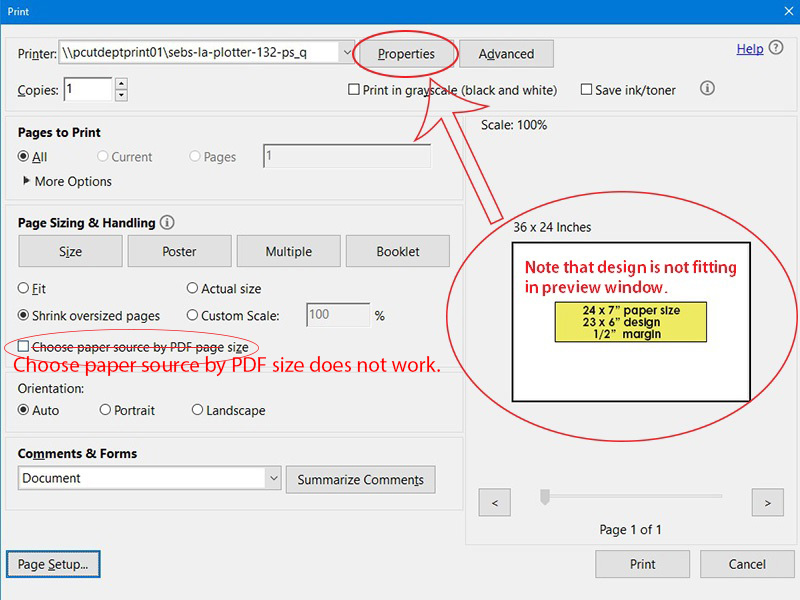
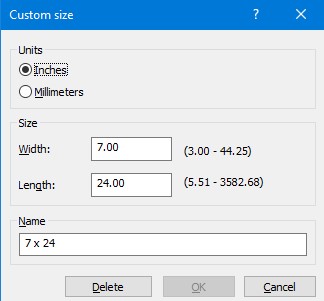
Click Custom to set up custom paper size.
Give the new paper size a name other than Custom so that you will know what it is if you need to reprint it.
If your print is 24″ or less in width, choose Roll 2 in Paper source.

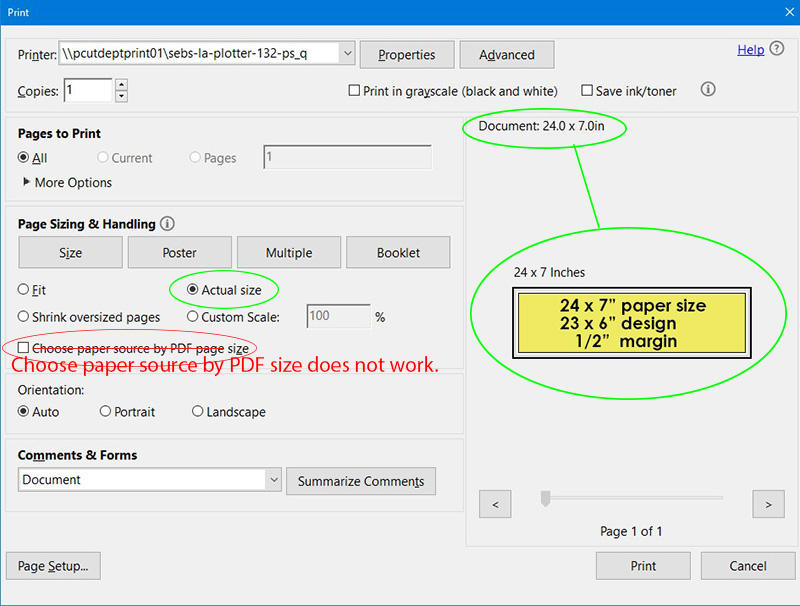
Click OK and you will return to the initial print window. The design should show in the preview window without extra white space.
If you look very closely at the preview, you will see some gray around the margins. This is is space the printer needs. If the design extends into that area, it won’t print. Printing edge-to-edge can be done on the HP DJ Z6dr (v trimmer) with extra setup and planning. The Shrink oversize pages option will give the printer the space it needs.
Note about Fit and Custom Scale options: For reducing or enlarging a design, resizing in the application used to create it will likely lead to better results.
-
The HP Z6dr has, in addition to the main horizontal cutter, a vertical trimmer. This allows for cutting in both directions.
Keep in mind that the printer cannot print to edges of the paper (borderless). Instead, the design must be printed on paper with space around the edges that is cut away.

?????????? 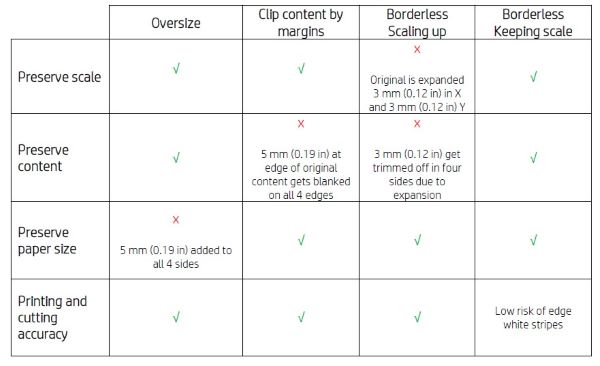
For more information about margin options, see the Vertical_Trimmer_User_Guide (PDF).
There are several margin options to consider. Rather than experiment and risk wasting ink and paper, ask LA IT for help.
-
Arch D and E sized Illustrator poster templates are available in the LA Coursework SharePoint site in
Documents / Data and Resources / PRINT_TEMPLATES.Download poster templates
-
Files may be printed from most any application. Each has its own setup menu and places to look for document and output settings. Printing a PDF file from Adobe Acrobat can help simplify printing as it has an easy to use print interface.
From whatever application you use to print, make use of any print preview it may offer.
General
- Check the Jobs menu on the printer to see if your print job is in the queue.
- Check printers in other rooms.
- Look at the physical printer for error messages. Errors should be reported to LA IT (landarch-help@sebs.rutgers.edu).
Printing from Adobe Acrobat
- Open the file in Acrobat rather than in a browser window.
- right-click –> Open with –> Acrobat
- If your file takes a long time to load on the screen or spends a lot of time “flattening” when printing, try optimizing the file. Save it as a copy.
- File –> Save as other –> Optimized PDF
Printing PDF from Photoshop
If optimizing the PDF doesn’t help, try Photoshop. Opening the file in Photoshop will flatten vectors and make the file simpler.
- The print preview should show the entire document.
- If not, check printer selection and click Print Settings for more options.
- The print menu isn’t as simple as Acrobat, so just please watch as it prints since getting the orientation right is a little trickier this way. If it starts printing and doesn’t look like it’s oriented correctly or the right size, cancel it from the printer’s panel.
- If you have trouble with the orientation, rotate it Photoshop.
- Image –> Image Rotation