Setting Up VPN
Virtual Private Network (VPN) access is required in order to connect to resources within the RBHS and Rutgers network boundaries. An example would be CORE folders.
A VPN connection is NOT required for resources accessible on the internet. Examples would be CONNECT, ONEDRIVE etc.
Setup consists of four steps:
- Signing up for DUO
- Signing up for VPN access
- Setting up your work desktop for remote access
- Setting up your home/remote computer
Using the VPN consists of two steps:
- Connecting to VPN
- Remotely connecting to your work computer
INSTRUCTIONS FOR SETTING UP VPN ACCESS
Make sure you are setup for DUO (NetID Two-Factor Authentication)
If not, visit this site for instructions:
https://it.rutgers.edu/two-step-login/knowledgebase/enrollment-guide/
Note: DUO will need to be used every time you login with your NetID
IMPORTANT: VPN access will not work without DUO
If you are already setup for DUO, follow these steps:
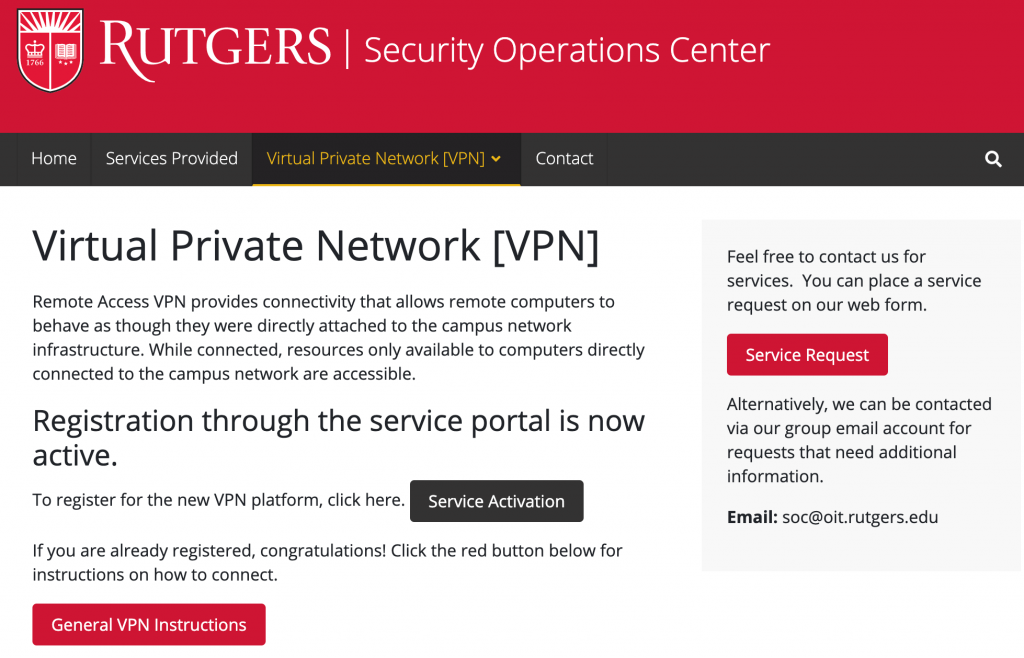
Go to http://soc.rutgers.edu/vpn
Click on Service Activation
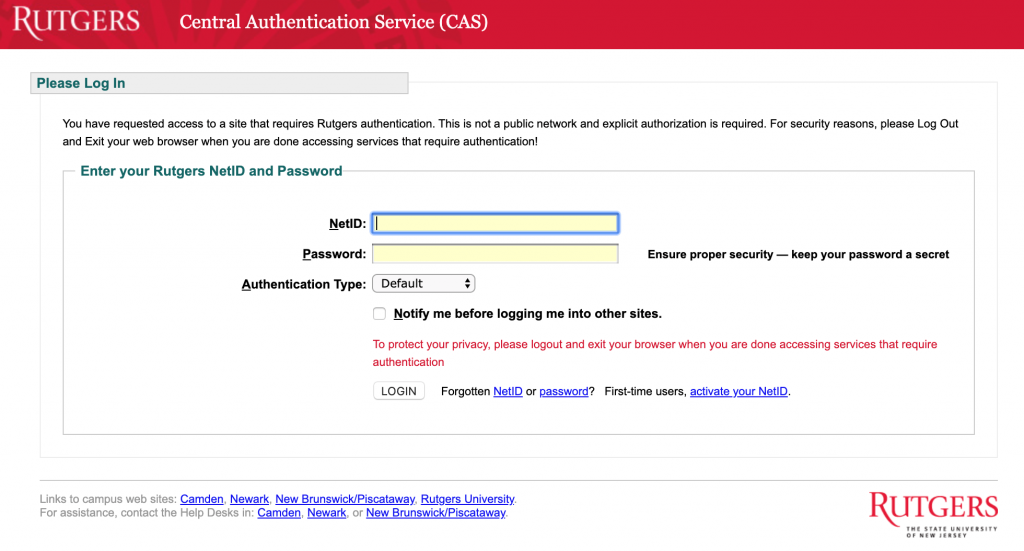
Login thru CAS
Make sure you check the box for Remote Access VPN
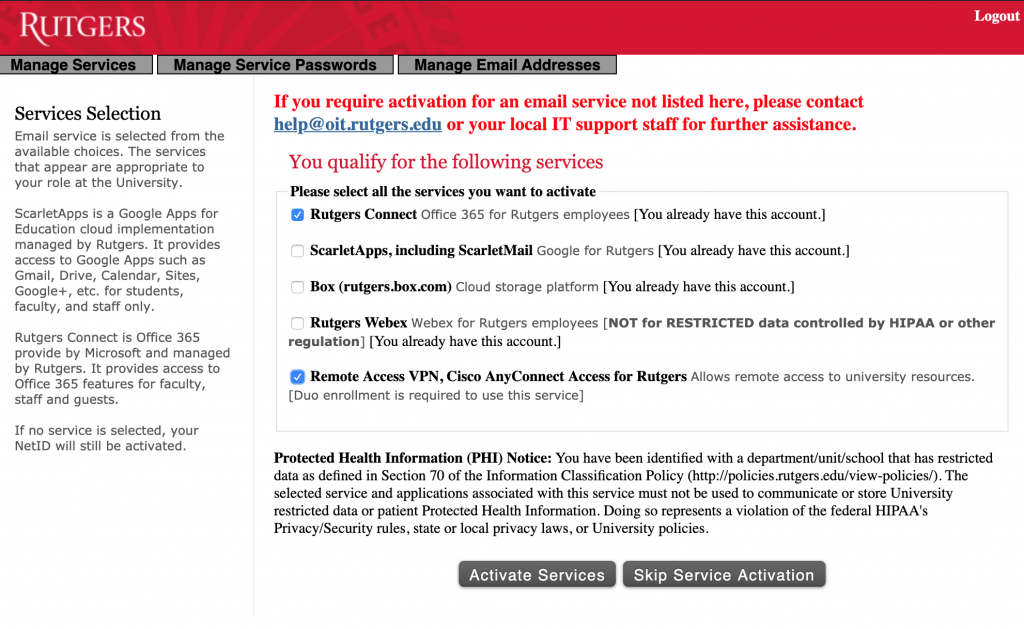
Click on Activate Services
Make sure you get an activation confirmation.
It may take up to an hour to activate VPN access
Setting up work desktop for remote access
Make sure you know the name of your work computer. Write this down and bring it home. You will need this to connect to your work desktop. Make sure you leave your work desktop on!!
Please put in a ticket so that we can setup your desktop computer for remote access. Administrative access to your computer is required for this step.. You can place a ticket by sending an email to shphelp@shp.rutgers.edu
Setting up your home/remote computer
Once the above steps have been completed, you can setup your home/remote computer. This is the computer you will be using from off-campus.
To setup your home/remote computer, go to http://vpn.rutgers.edu
Install the client software when prompted.


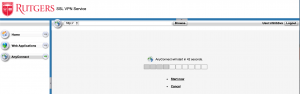
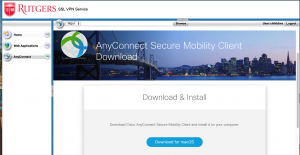
Follow steps to install the downloaded file. This will install the Cisco Anyconnect VPN Client
Connecting to VPN and your work desktop
To connect to the VPN, open the Cisco Anyconnect App. Make sure the server name is vpn.rutgers.edu. Click Connect

In the next window, enter your NetID username and Password
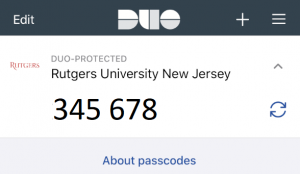
For Duo Action or Second Password, get the numeric DUO one-time code
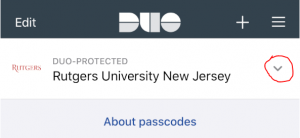
To get the DUO numeric code, On your mobile device, open the DUO app.
Click the down arrow
Enter the 6 digit code shown in your app. Refresh the code if necessary
Click Accept on the next window

At this point you are connected to the VPN.
Next, use the Windows Remote Desktop software to connect to your work desktop computer. Make sure you use the complete computer name including the “core.umdnj.edu”, e.g ssbhpdo100d01.core.umdnj.edu
Now you are able to access your work desktop just as if you were at your desk
Make sure you disconnect from your desktop AND VPN when done